

Reading the numbers
What Shown, Submitted, Left and Fails mean, what each form status means, and how to use the Overview, Alerts and Setup tabs and the self-test.
Each tracked form has four counts and one status. This page explains them, and it shows what each tab of the form panel does.
The numbers
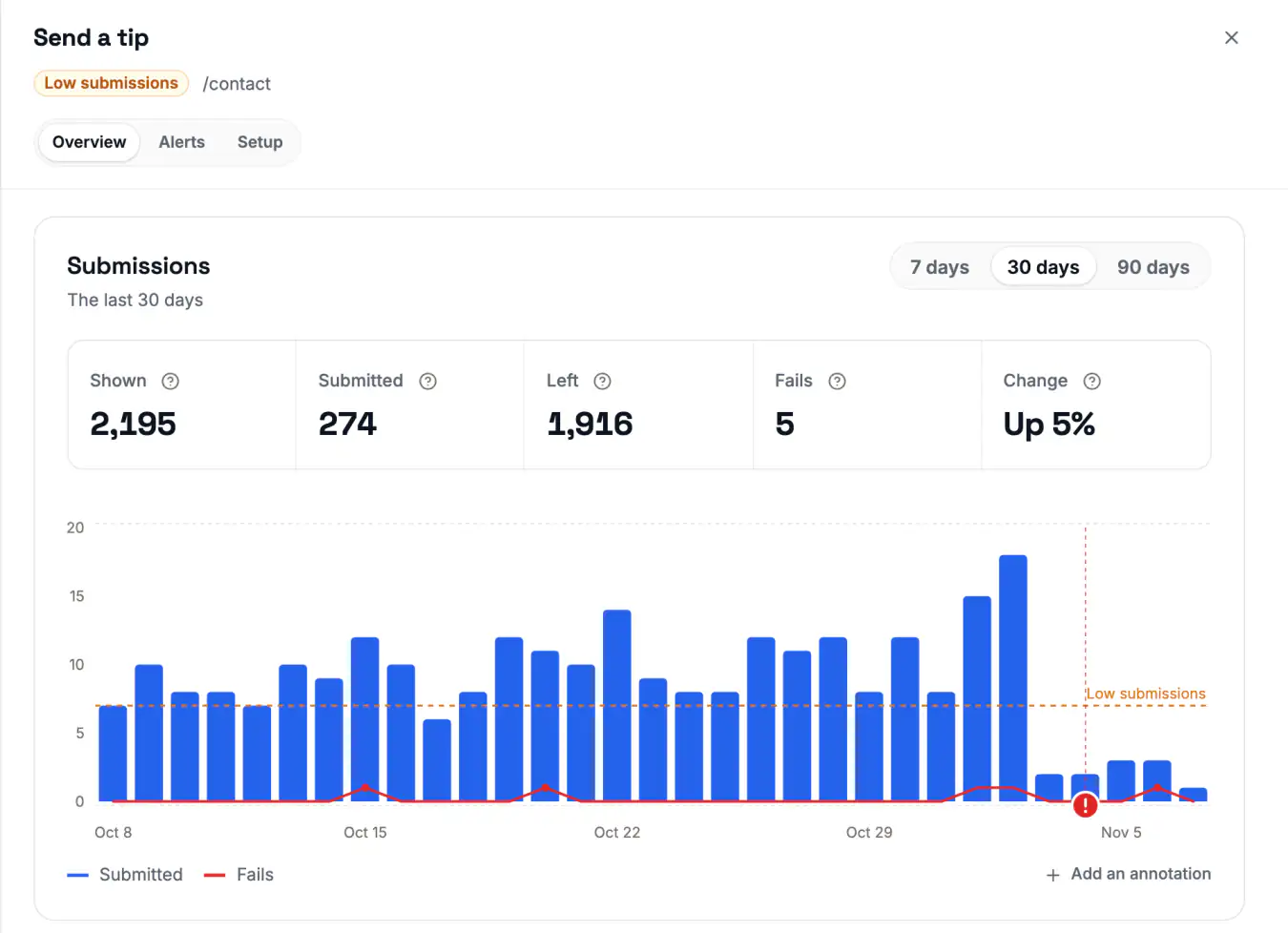
Open a form to see its numbers. On the Overview tab, select 7 days, 30 days or 90 days. The app shows only the periods that fit in the history that your plan keeps. If your plan keeps less than 90 days, the app also shows the length of your plan, for example 14 days on Free. See Plans and limits.
| Number | What it means |
|---|---|
| Shown | The form entered the visitor's screen, counted once per page load |
| Submitted | Confirmed successes from the tracking method of the form |
| Left | "Left without submitting: Shown, minus Submitted, minus fails where reported. It never goes below 0." |
| Fails | The site rejected a valid submission. A validation mistake of a visitor is not a fail. This number shows only for forms that report fails |
| Change | Submitted against the previous period of the same length |
Shown and Left need the Forms tag on the page of the form. Without the tag, they show Not available in the panel and a dash in the list. A form with the Tracking pixel, JavaScript or Webhook method also shows Not available if Shown is 0 in the period. This is not the same as 0. A 0 is a real count.
If the form has no submissions and was never shown, the Overview tab shows only "No submissions yet". The numbers and the chart appear with the first submission.
Change shows No earlier count if the previous period has no submissions. It also shows this if your plan keeps less than two periods of history.
VitalSentinel counts by the hour, so the newest hour can still grow. The Daily and Weekly views count days in UTC. The Hourly view uses the time zone of your profile, or of your browser if your profile has none.
Statuses
Each form shows one status. Paused – plan full replaces all other statuses. A form with no method shows Needs a method. Then an open alert decides the status, in this order: Too many fails, No submissions, Low submissions. Hover over the status to see what it means.
| Status | What the app says |
|---|---|
| Needs a method | "Choose how this form's successful submissions are counted." |
| Waiting | "The method is set, but no submission has arrived yet. Submit the form once yourself to check it." |
| No alerts set | "Submissions are arriving, but no alert is set. Nothing is sent if the form breaks." |
| Healthy | "Alerts are set and none is open." |
| Low submissions | "The Low submissions alert is open: fewer submissions than your limit." |
| No submissions | "The No submissions alert is open: nothing has been submitted for longer than your limit." |
| Too many fails | "The Too many fails alert is open: the site rejected more valid submissions than your limit." |
| Paused – plan full | "Your plan's limit of tracked forms was reached, so we paused this form. Its code is ignored until there is room." |
If a form shows Waiting for a long time, see Why does my form stay on Waiting?
No alerts set means that the form works, but nothing tells you if it stops. A form whose alerts are all muted or off also shows this status. To set an alert, see Form alerts.
The form panel
Click a form in the list to open its panel. The panel has three tabs. A form without a method, or a form on Waiting, opens on the Setup tab. Other forms open on the Overview tab.
Overview
The Overview tab shows the numbers and a chart of the submissions.
- The chart shows Submitted as bars. For a form that reports fails, it also shows Fails as a line.
- Alerts show as marked periods.
- An alert limit shows as a line on the view with the same period. No submissions shows no line.
- Daily is always available. An alert that is on, with Per set to hour, adds the Hourly view. This view always shows the last 7 days.
- An alert that is on, with Per set to week, adds the Weekly view. Each bar in this view is the total of the 7 days up to that day.
Alerts
The Alerts tab shows the alerts of the form. It also shows the Incident history, which says when each alert opened and closed.
If Page Monitoring is active, click See changes next to an incident to open the Changes page around that time. A deploy or a page edit can then show next to the drop in submissions. For more, see Form alerts.
Setup
The Setup tab has these parts:
| Card | What it does |
|---|---|
| First submission | The self-test of a form on Waiting |
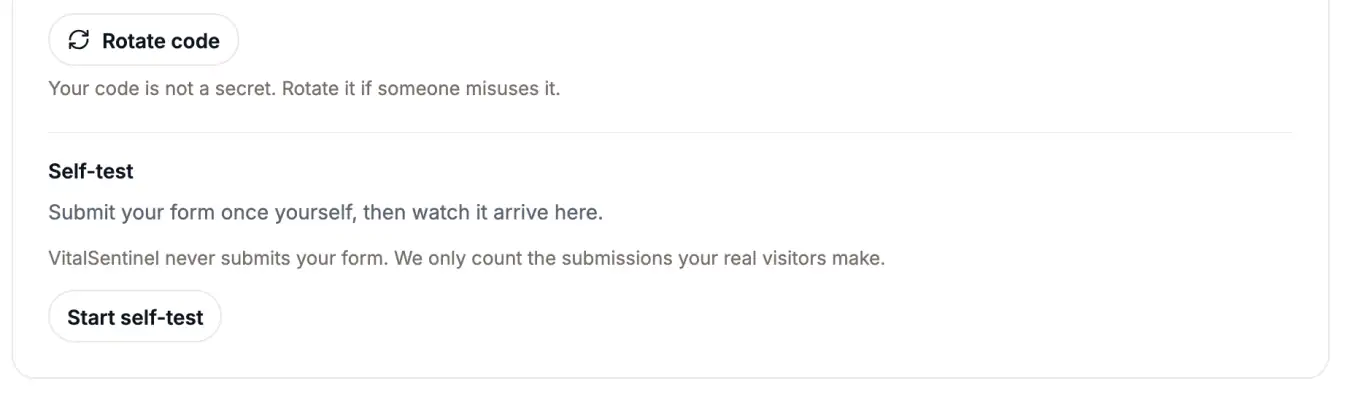
| Tracking method | The method, the code, Rotate code (code snippet methods only), Change method and the self-test. Only owners and admins can change the method or rotate the code |
| Stop tracking | Deletes the alerts and settings of the form. The form on your site does not change |
The self-test
The self-test proves that your method works. VitalSentinel never submits your form, so you submit it yourself one time.
- Open the form, then open the Setup tab.
- If the form is not on Waiting, click Start self-test.
- Open your site in another tab, and submit the form with real test details.
- Go back to the panel. "Your submission arrived" shows when the submission arrives.
The app says "Submit your form once yourself, then watch it arrive here." It checks every few seconds for up to 10 minutes. If nothing arrives, it says "Nothing arrived yet. Check the method is set up, then try again."
The response to a code snippet proves nothing, because every call answers with the same image. Only the self-test shows that VitalSentinel counted the submission. The self-test checks successes only, so it cannot confirm your fail code.
Your test submission is a real submission. It counts in Submitted, and your site handles it as usual.
Other places that show forms
- Reports have a Form Monitoring section with the Forms overview widget. If the domain had no tracked forms in the period, the section says "No form tracked in this period". The PDF says "Form Monitoring had no tracked forms in this period."
- The weekly report and the change digest have a Form Monitoring part. It lists forms with an open alert, for example "Contact us has too many failed submissions". The weekly report also shows a large change in submissions, for example "Form submissions went down, from 120 to 80". The change digest shows the number of submissions and the change in percent.
- The What changed card of the Overview has a row for Form Monitoring, for example "2 form alerts are open."
- To stop the Form Monitoring emails, turn off Form Monitoring in the Alert emails card of your notification settings.
- The public API and the MCP server give the same numbers.
Related
- Form alerts - low submissions, no submissions and too many fails
- How to count - the ways to count submissions
- Troubleshooting - common problems
