

Overview
Form Monitoring counts the real submissions of your forms and tells you when a form stops working.
Form Monitoring tells you when a form stops producing submissions. It counts real visitors only. VitalSentinel never submits your form.
What Form Monitoring does
A form can stop working while the page still looks correct. A plugin update, a new script or a change to your mail server can cause this. Uptime checks do not see it, because the page still loads. Form Monitoring finds this problem from the submissions of your real visitors:
- You select a form to track. See Add a form.
- You select how VitalSentinel counts the submissions. See How to count.
- VitalSentinel counts how often visitors see the form, submit it and leave it. See Reading the numbers.
- You set alerts for low submissions, no submissions or too many fails. See Form alerts.
Form Monitoring does not send test submissions. If nobody submits a form, it has nothing to count.
Before you start
- Ownership verification. Form Monitoring uses the crawler, so it opens only after you verify that you own the domain. Until then, the page shows the chip Waits for verification. Owners and admins can click Verify domain.
- The Forms tag. Form Monitoring counts through its own script, the Forms tag (
forms.js). It does not need Web Analytics. See Add the Forms tag. - Where to find it. Open a domain. In the Site checks group of the sidebar, select Form Monitoring.
- Roles. Workspace owners and admins can add forms, change the method and stop tracking. Members can see the forms, the numbers and the alerts, but not the code of a form. On the Setup tab, a member sees "Ask an owner or admin of this workspace for the code."
Add the Forms tag
The Forms tag counts the forms that use Automatically or Page attribute. It also gives Shown and Left to every form. Add it to the head of every page with a form that you track:
<script src="https://tr.vitalsentinel.com/forms.js" data-key="YOUR_TRACKING_ID" async></script>The tag in the app has the tracking ID of your domain. It uses the same tracking ID as the RUM and Web Analytics scripts. The app says that the tag "counts every form on the pages it is on, not only the ones you track". Copy the tag from one of these places:
- The Form Monitoring page, until VitalSentinel sees the tag on your site.
- The setup of a form that uses Automatically or Page attribute.
- The Form Monitoring card in domain Settings > Tracking. See Tracking scripts.
- The Install tracking step of onboarding, if you select Form Monitoring.

VitalSentinel sees the tag when the tag sent a form event in the last 3 days, or when the install check found it. If VitalSentinel does not see the tag, the warning forms.js is not on your site shows on the Form Monitoring page, also when you track no form yet. You cannot close it. The Forms tag is a separate script. RUM Monitoring and Web Analytics can receive data while the Forms tag is missing. Forms that use the Tracking pixel, JavaScript or Webhook method continue to count without the tag.
The Web Analytics script does not count forms. If you set up Form Monitoring with the Web Analytics script only, add the Forms tag.
Read the Form Monitoring page
When the domain has tracked forms, two tiles show at the top of the page:
| Tile | What it shows |
|---|---|
| Tracked forms | The forms tracked on this domain |
| Need a look | Forms with an open alert: low submissions, no submissions or too many fails |
The Your forms card lists the tracked forms. It also shows how many tracked forms your workspace uses, and the limit of your plan. The numbers in the list cover the last 7 days.
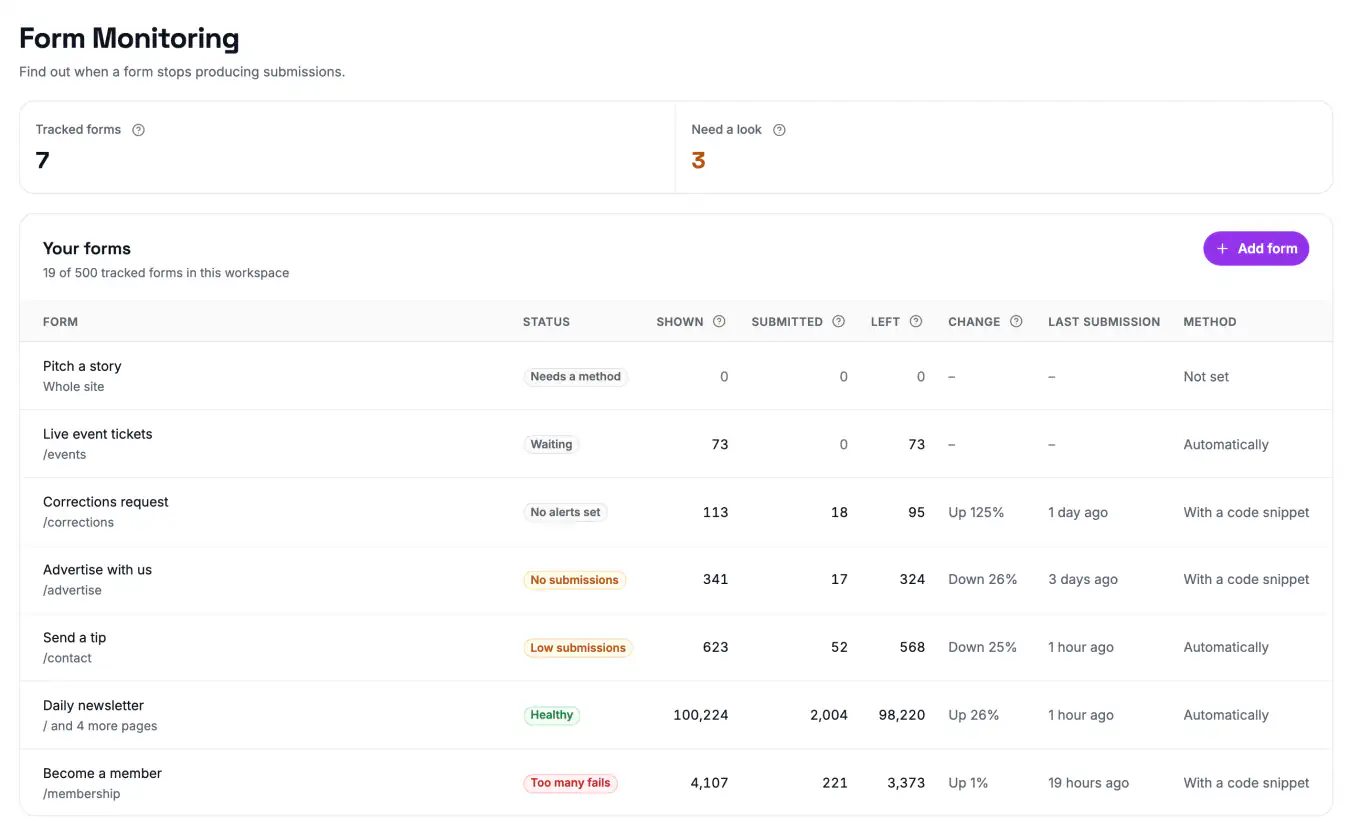
| Column | What it shows |
|---|---|
| Form | The name of the form and its pages |
| Status | The state of the form. See Statuses |
| Shown, Submitted, Left | The counts of the last 7 days. See The numbers |
| Change | Submitted against the previous 7 days |
| Last submission | When the latest submission arrived |
| Method | Automatically or With a code snippet, or Not set before you select a method. Hover over it to see the method. This column shows only on wide screens |
Click a row to open the panel of the form. The panel has three tabs: Overview, Alerts and Setup.
Under the list, the Suggested forms card shows forms that VitalSentinel found on your site and does not track yet. See Track a suggested form.
Plans and limits
Form Monitoring is available on every plan. Your plan sets how many forms the workspace can track and how long VitalSentinel keeps the counts. See Plans and limits.
- A form uses one place in the limit, however many pages it covers.
- All domains of the workspace share the limit.
- Form events do not count toward the Web Analytics event limit of your plan. If the workspace reaches that limit, form tracking continues.
Related
- Add a form - track a suggested form or add a form by hand
- How to count - the ways to count submissions
- How to add the code - where the code goes
- Reading the numbers - counts, statuses and the panel
- Form alerts - low submissions, no submissions and too many fails
- Troubleshooting - common problems
- Privacy - what form tracking collects
