

Add a form
Track a form that VitalSentinel suggests, or add a form by hand on one page, on several pages or on the whole site.
There are two ways to track a form. You can track a form from the Suggested forms card, or you can click Add form and enter its pages.
Before you start
- Only workspace owners and admins can add forms.
- Add the Forms tag to the pages of your forms. A form that counts only with the Tracking pixel, JavaScript or Webhook method does not need it.
- If the workspace uses all its tracked forms, Add form and Track are not available. The page says "Your workspace has no free tracked form". Stop tracking a form on any domain, or upgrade your plan. See Plans and limits.
Track a suggested form
The Suggested forms card lists the forms that VitalSentinel found on your site and does not track yet. VitalSentinel finds them in the crawls of Site Health Monitoring and Page Monitoring, and with the Forms tag. Without those crawls, suggestions come only from the tag. VitalSentinel never submits these forms.
Each row shows the kind of form, its pages, its fields and the method that fits it best.
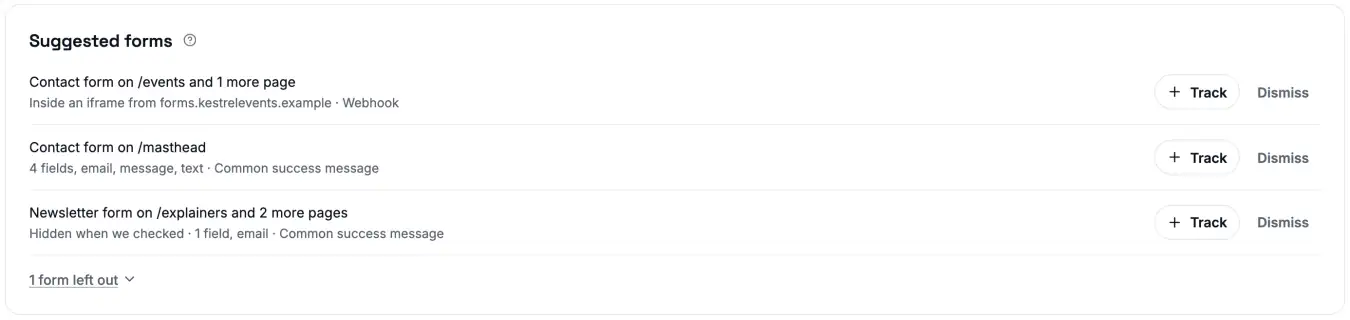
To track a form:
- In the Suggested forms card, click Track next to the form.
- In the dialog Track this form, select how to count submissions. See How to count.
- If you selected With a code snippet, copy the code. See How to add the code.
- Keep the name that VitalSentinel suggests, or enter a new name.
- Click Start tracking.
The panel of the form opens. A form on Waiting opens on the Setup tab. Then run the self-test.
A form that you track from the suggestions counts on every page where VitalSentinel finds it.
To remove a suggestion, click Dismiss. The form moves to the group N forms left out, where N is the number of forms. To bring it back, click Restore.
Why some forms are not suggested
Most sites have forms that are not worth an alert, for example a search box. VitalSentinel leaves these forms out of the suggestions, so that the list shows the forms that bring you leads and signups.
These forms are in the group N forms left out under the suggestions. You can still track them. Each one shows why VitalSentinel left it out:
| Reason | What it means |
|---|---|
| Online store form | A form of a shop, for example an add-to-cart form |
| Checkout or payment | A checkout or payment form |
| Search or filter | A search box or a filter |
| Login or account | A login or account form |
| Site utility | A form with another site function, for example a cookie or language choice |
| Dismissed | You clicked Dismiss for this form |
The Forms tag skips these forms, except a dismissed form. For a skipped form, the setup shows "Our script skips this kind of form, so a code snippet is the only way to count it."
A form can also show the note Hidden when we checked. Such a form stays in the suggestions, at the end of the list. It can be a real form that shows only on a desktop screen or after a scroll. The script still counts this form.
Add a form by hand
If your form is not in the list, add it by hand:
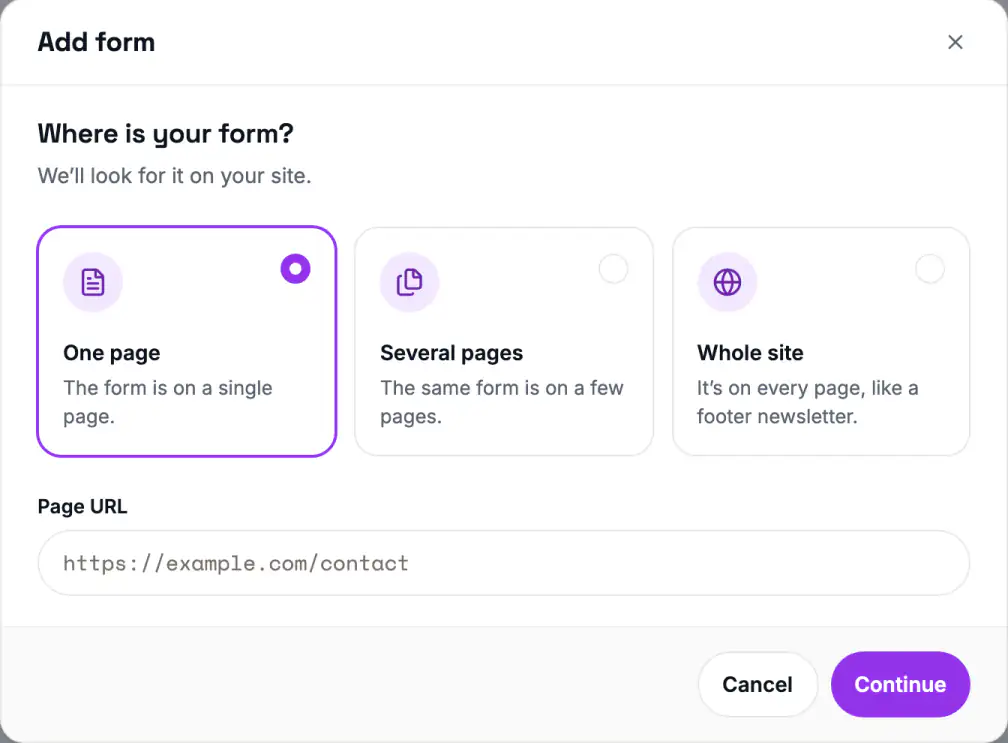
- Click Add form.
- Under Where is your form?, select One page, Several pages or Whole site.
- Enter the page. Start each URL with
https://. - Click Continue. VitalSentinel looks for forms on these pages.
- If VitalSentinel found forms, select your form, then click Continue.
- Under How should we count submissions?, select Automatically or With a code snippet.
- If you selected With a code snippet, copy the code. See How to add the code.
- Keep the name that VitalSentinel suggests, or enter a new name.
- Click Start tracking.
| Where | Use it for | What you enter |
|---|---|---|
| One page | The form is on a single page | Page URL |
| Several pages | The same form is on a few pages | Page URLs, one per line, up to 500 |
| Whole site | The form is on every page, for example a newsletter form in the footer | URL of a page it is on |
A whole-site form is one form. It uses one tracked form, and it counts every page. /contact and /contact/ are one page.
With Automatically, a form on One page or Several pages counts only those pages. A code snippet counts wherever the code runs. A new form also shows the counts from before you tracked it, back to the launch of Form Monitoring. Your plan sets how far back you can see.
If another form already tracks a form on the page, the dialog says so. VitalSentinel counts each form one time.
Link a form that you added by hand
VitalSentinel must connect a form that you add by hand to the form that it finds on the page. This connection is the link.
- One form found. VitalSentinel links it by itself.
- Several forms found. The panel asks "Which form on this page is it?". Select the form, then click Link this form.
- No form found. The form waits. VitalSentinel links it when a visitor opens the page.
- None of these, link it later. If you select this option, VitalSentinel does not link the form by itself. The panel lists the forms that it can be, so that you can link it later.
A form that uses Automatically does not count until it is linked. A form that uses a code snippet counts from the first submission. A link adds Shown to such a form.
Stop tracking a form
- Open the form, then open the Setup tab.
- Click Stop tracking.
- Click Stop tracking in the dialog.
VitalSentinel deletes the alerts and settings of the form. The form on your site does not change. Remove any code that you added to your site.
Related
- How to count - the ways to count submissions
- How to add the code - where the code goes
- Troubleshooting - common problems
