

How to count
Count form submissions automatically or with a code snippet. Compare the Tracking pixel, Page attribute, JavaScript and Webhook methods, and rotate or change them.
Each form has a method. The method tells VitalSentinel how to recognize a successful submission. You select the method when you add the form, and you can change it at any time.
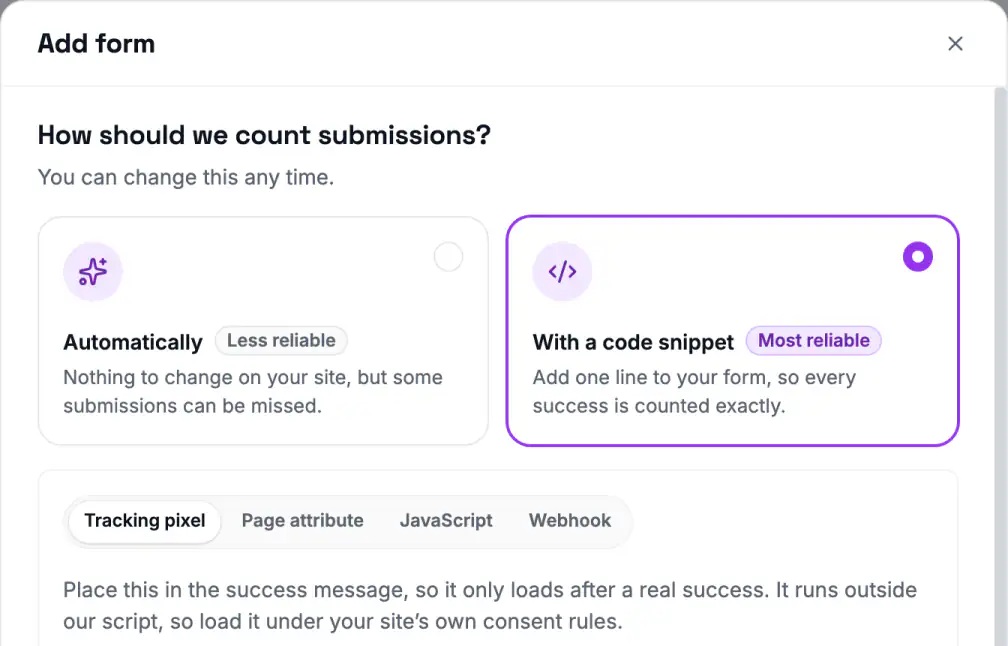
| Choice | Reliability | What the app says |
|---|---|---|
| Automatically | Less reliable | "Nothing to change on your site, but some submissions can be missed." |
| With a code snippet | Most reliable | "Add one line to your form, so every success is counted exactly." |
Use With a code snippet for a form that is important to your business.
Automatically
Automatically uses the Forms tag. Apart from the tag, you change nothing on your site. The setup shows the tag when you select Automatically. VitalSentinel selects one of two methods:
| Method | How it counts a success |
|---|---|
| Platform detection | VitalSentinel recognizes the platform of the form and listens for the success signal of the platform |
| Common success message | After a visitor submits, VitalSentinel watches the page for a standard success message. It can miss a custom message |
Platform detection recognizes Contact Form 7, Gravity Forms, HubSpot, Jotform, Webflow and Kit. A Kit form is always a newsletter form. It counts also when a visitor declines your cookie banner and Kit's own script does not load. Then the submission counts when the browser sends the form to Kit.
Common success message also counts the message of a newsletter with double opt-in, for example "Almost there – check your inbox to confirm your subscription". The script reads only text that shows after the submit. So text that was always next to the form does not count.
After a submit, the script watches the page for 60 seconds. It reads the success message in the browser only. On a single page app, the watch continues after a route change. A POST back to the same path can count when the page loads again.
Some forms cannot count with Automatically:
- A plain form that reloads the page and shows a generic message counts nothing. VitalSentinel cannot tell this message from text that is always on the page. Use a code snippet.
- A form that redirects to another page shows Shown but no Submitted. See Forms that redirect.
- A form that is embedded from another site, if VitalSentinel does not recognize its platform. The script cannot read inside the iframe. See Forms in iframes.
With a code snippet
With a code snippet, your site tells VitalSentinel about each success. When you select With a code snippet, four tabs show the code for your form:
| Method | Where it goes | Needs the Forms tag |
|---|---|---|
| Tracking pixel | In the success message | No |
| Page attribute | On the element that shows your success message | Yes |
| JavaScript | After your own success code | No |
| Webhook | In the webhook settings of your form tool, or on your server | No |
The tab that you select is the method that VitalSentinel saves. For the exact code and the steps, see How to add the code.
Page attribute is not available for a form that the script skips, or for a form that is embedded from another site. The script must see the form and the message.
Shown and Left need the Forms tag on the page of the form. Without the tag, these numbers show Not available in the panel and a dash in the list, also if your code snippet counts each success.
The fail code
Each code snippet also has a fail version: Fail pixel (optional), Fail attribute (optional), Fail line (optional) and Fail URL (optional). The fail code is optional.
Use the fail code where your site reports a failed submission. A fail means that the site rejected a valid submission. A typing mistake of a visitor is not a fail.
| Method | What counts as a fail |
|---|---|
| Tracking pixel | The fail pixel loads in your error message |
| Page attribute | Your error message, marked with the fail attribute |
| JavaScript | A call to the fail URL |
| Webhook | A call to the fail URL |
| Common success message | This method has no fail signal |
| Platform detection | Only some platforms report a fail |
The alert Too many fails is available only for forms that report fails. The four code snippet methods report fails by default. So Fails and Too many fails show also before you add the fail code, and the count stays 0 until you add it.
Rotate the code
Your code is in the source of your page, so it is not a secret. If someone misuses it, rotate it:
- Open the form, then open the Setup tab.
- Click Rotate code.
- Click Rotate in the dialog.
- Replace the old code everywhere you placed it.
Rotate code creates a new token. The old code can continue to count for about 2 minutes, then it stops. The button shows for the Tracking pixel, Page attribute, JavaScript and Webhook methods.
Change the method
- Open the form, then open the Setup tab.
- In the Tracking method card, click Change method.
- Select the new choice. If it uses code, select the tab of the method.
- Click Save method.
A method change keeps the history. The hours before the change keep their counts. The app warns that counts can jump when you change how a form is counted. For example, a Webhook on a server also counts visitors with ad blockers.
If you change between Automatically and With a code snippet, the alerts of the form wait for one full period. Check the alert values after the change.
If the new method has no fail signal, Too many fails cannot fire. An open alert of this kind closes with no notice. The alert stays on, and it works again when the form reports fails.
How VitalSentinel counts
- One submission counts one time. With a code snippet, success and fail come only from your code. The script adds Shown. So a broken Webhook does not hide behind other counts.
- Pages. A form on One page or Several pages counts only those pages with Automatically. A code snippet counts wherever the code runs.
- Whole site. A whole-site form counts every page.
- Hourly counts. VitalSentinel stores the counts by the hour. The newest hour can still grow.
- Real visitors only. VitalSentinel removes known bots and crawlers from the script and from code that runs in the browser. A Webhook call counts from any server or tool, but never from a known crawler. VitalSentinel never submits a form.
Related
- How to add the code - where the code goes
- Reading the numbers - counts, statuses and the self-test
- Form alerts - alerts after a method change
