

Form alerts
Set up the Low submissions, No submissions and Too many fails alerts of a form on the Alerts page, with values suggested from the history of the form.
Form alerts tell you when a form stops working. No alert turns on by itself. You select the limit, and you save the alert on the Alerts page.
The three alerts
| Alert | Fires when | Value | Period |
|---|---|---|---|
| Low submissions | The form gets fewer submissions than your limit in the period | Number, 1 or more | Per: hour, day or week |
| No submissions | The form gets no submission for your limit | Hours, 1 to 720 | None |
| Too many fails | The form has more fails than your limit in the period | Number, 0 or more | Per: hour, day or week |
- The No submissions limit cannot be longer than the history that your plan keeps. See Plans and limits.
- Too many fails is available only for forms that report fails. See The fail code. If the form moves to a method with no fail signal, this alert cannot fire until the form reports fails again.
- A form has one alert of each kind. If the alert exists, the Create alert panel shows This form already has this alert. Click Edit that alert. On the Alerts tab of the form, click Open alert to open a saved alert.
Suggested values
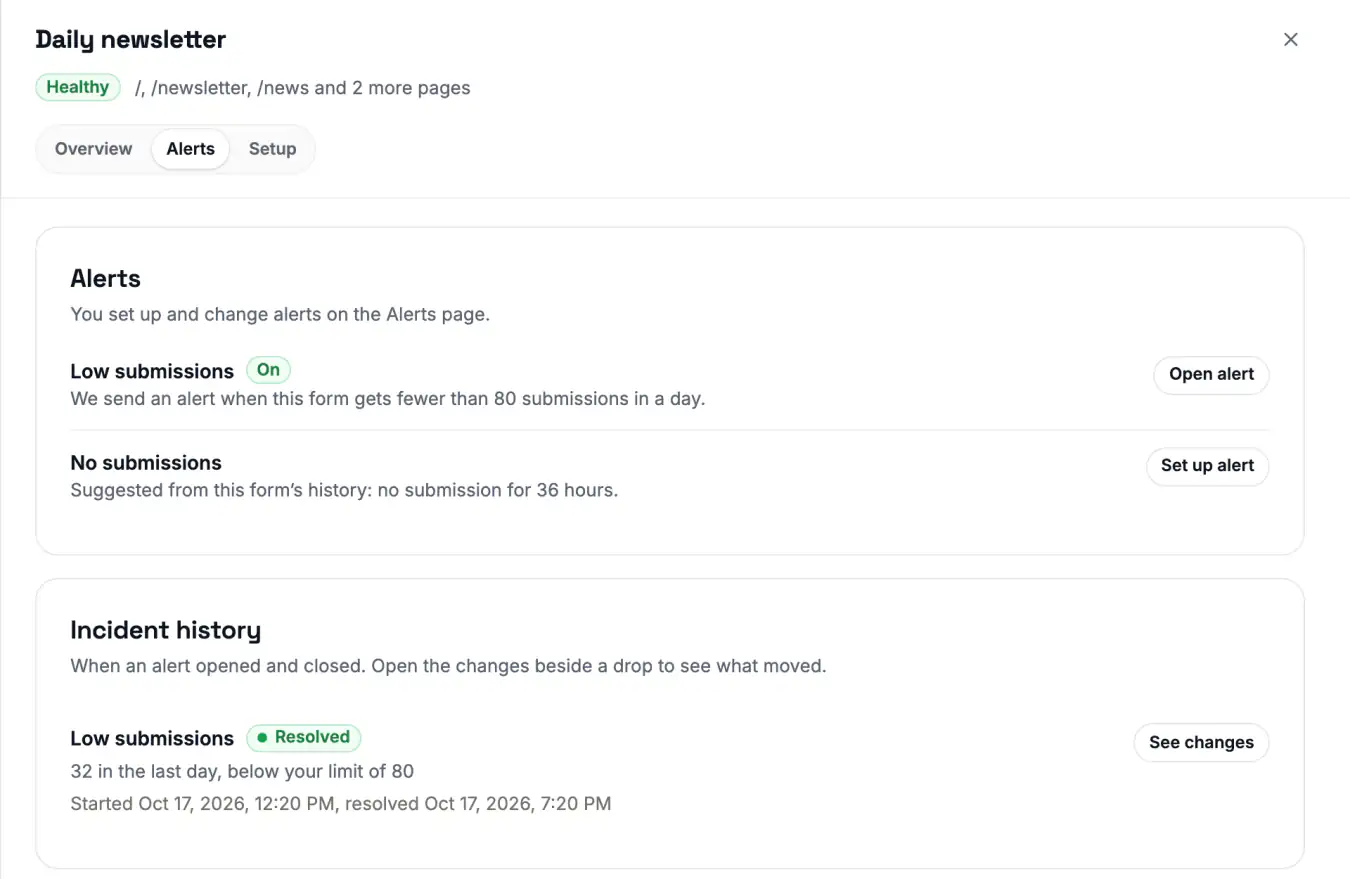
After a form has 14 days of data, VitalSentinel suggests values for Low submissions and No submissions. It uses the history of the form. Too many fails gets no suggestion. The panel then shows, for example, "Suggested from this form's history: fewer than 5 per day."
Before 14 days, the panel shows "Suggested values appear once the form has 14 days of data."
VitalSentinel never turns on a suggestion by itself. You check the value and save the alert.
Set up an alert
You set up and change form alerts on the Alerts page. The panel of the form only reads them.
To start from the form:
- Open the form, then open the Alerts tab.
- Click Set up alert next to the alert. The Alerts page opens with the form and any suggested value filled in.
- Check the values.
- Click Save alert.
To start from the Alerts page:
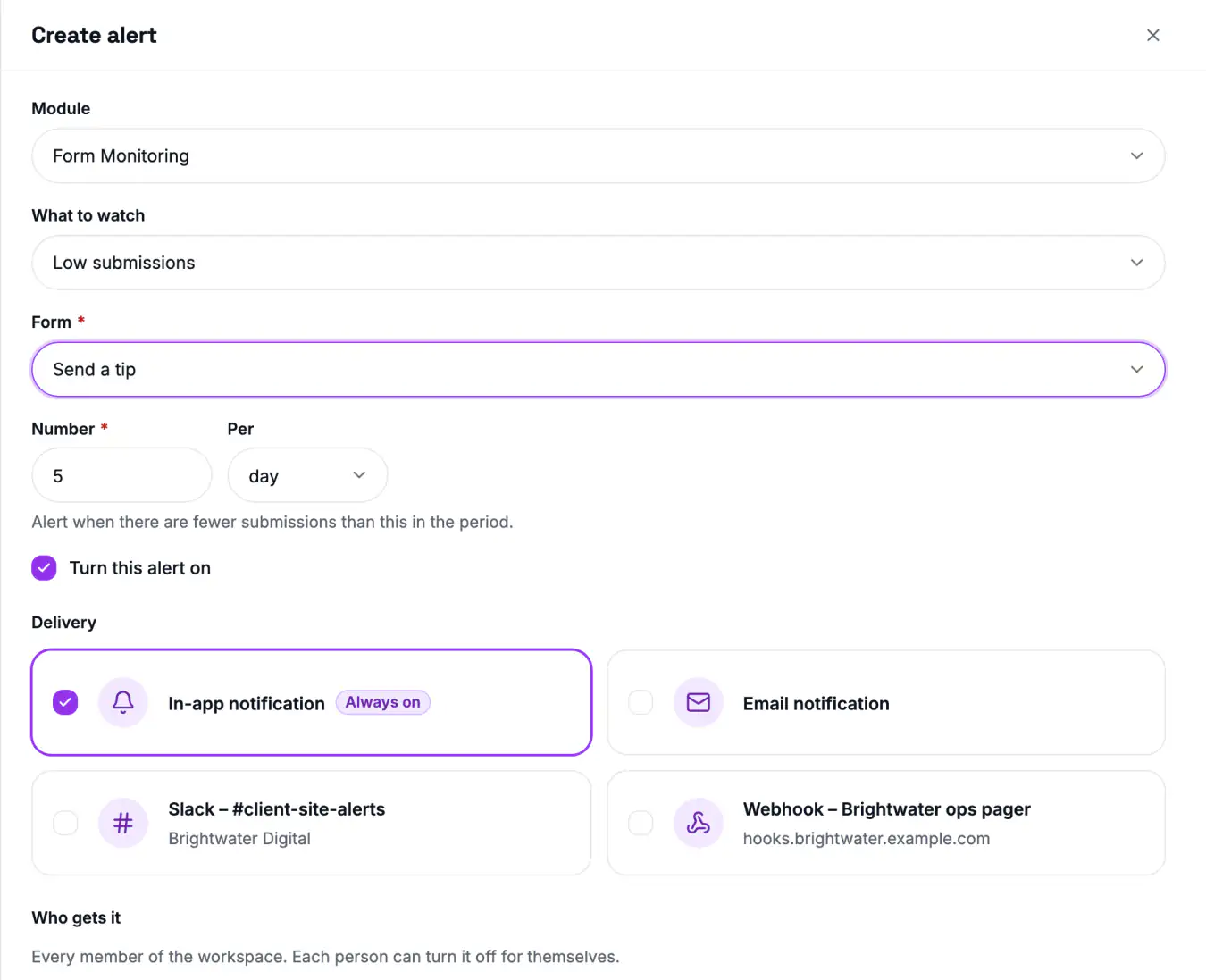
- Click Create alert.
- In Module, select Form Monitoring.
- In What to watch, select the alert.
- In Form, select the form.
- Enter the value. If the alert has a Per field, select hour, day or week.
- Click Save alert.
Only workspace owners and admins can set up alerts. See Alerts.
When an alert fires
- First wait. An alert waits for the first submission of the form plus one full period. For No submissions, the period is the number of hours that you set.
- Later waits. After a method change between Automatically and With a code snippet, the alert waits a full period again. It also waits a full period after a form returns from Paused – plan full.
- Checks. VitalSentinel checks the alerts about every 5 minutes.
- One notice. An alert fires one time and stays open until the form is back within its limit. Then VitalSentinel sends a recovery notice.
- Status. While an alert is open, the status of the form shows the name of the alert.
An alert can close with no recovery notice. This happens when VitalSentinel cannot judge the rule, for example when the form is paused or has no method. It also happens when you mute the alert or turn it off.
Who gets the alert
A form alert is always shared with the workspace. Each accepted member gets it. A member can stop it with the Send to me switch in the opened alert. The Form Monitoring switch in Alert emails stops the emails of all form alerts. Owners and admins all change the same rule.
The name of the rule follows the form, for example "Contact form: Low submissions". The severity is fixed.
Form alerts also go to the Slack channels and webhooks that you select. Slack and webhook alerts need a plan that includes them. See Alert delivery and Plans and limits.
To silence an alert and keep its value, edit the alert and select Mute this alert. The Alerts tab of the form then shows the chip Muted. An alert that is turned off shows the chip Off.
Related
- Alerts - the Alerts page
- Alert delivery - email, Slack and webhooks
- Reading the numbers - statuses and the incident history
Reading the numbers
What Shown, Submitted, Left and Fails mean, what each form status means, and how to use the Overview, Alerts and Setup tabs and the self-test.
Troubleshooting
Fix common Form Monitoring problems - a form on Waiting, zero Submitted, Not available, pages with IDs in the URL, consent tools and plan limits.
